
Getting Started
Download & Install
Download Big Spender from the App Store (iOS) or Google Play Store (Android). The app works entirely offline on your device.
First-Time Setup
When you open the app for the first time, you'll go through a short onboarding process where you'll set your income, savings goal, and add any regular bills.
Navigation
Use the app's bottom navigation to switch between Dashboard, History, Budget, Search and Settings.
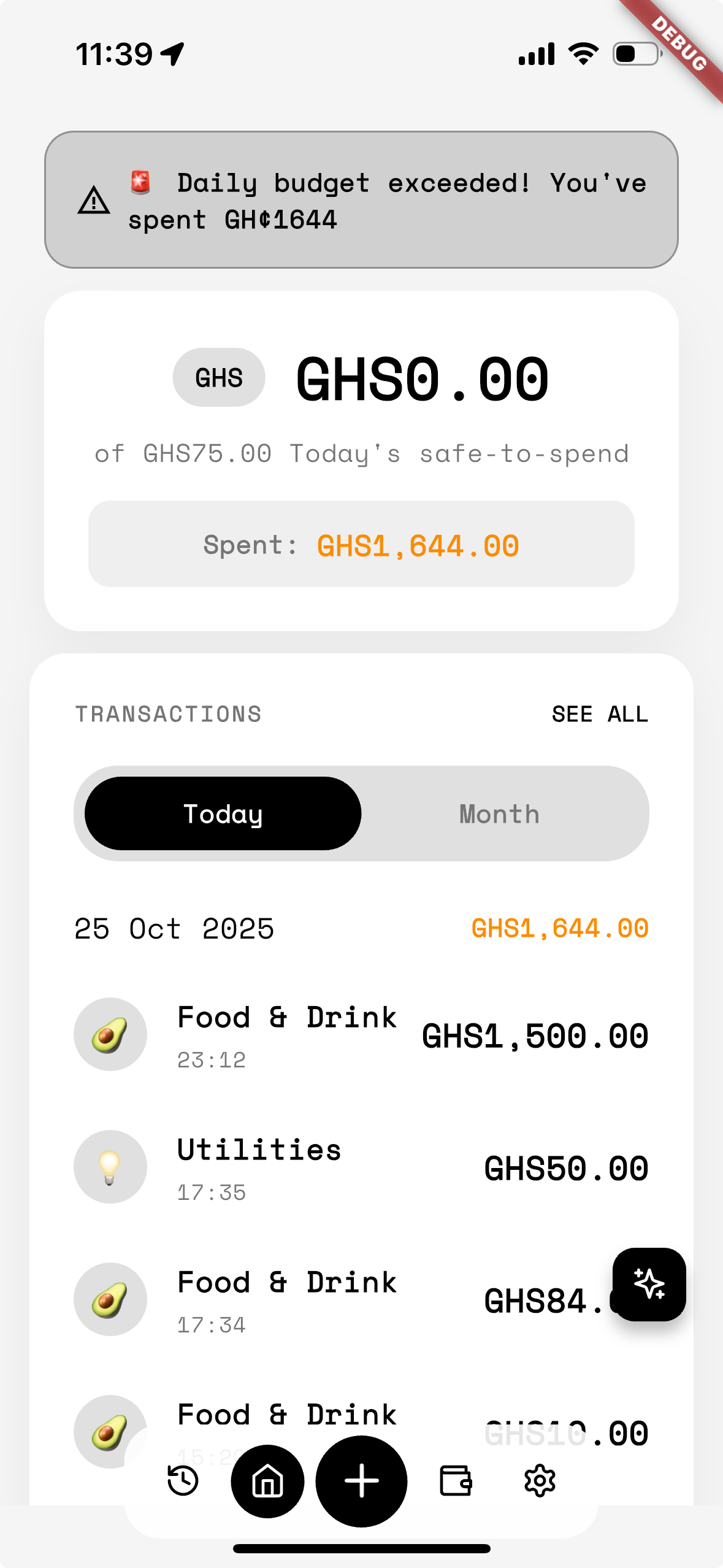
- History: View and manage all expenses
- Dashboard: Budget overview & quick actions
- Budget: Create and manage budgets
- Search: Find transactions quickly
Tracking Expenses
Adding a New Expense
Tap the Add Expense (plus) button, enter the amount, choose a category, add a description and date, then save.
Add Media (Optional)
Attach receipt photos. Big Spender's OCR can extract merchant names and amounts automatically.
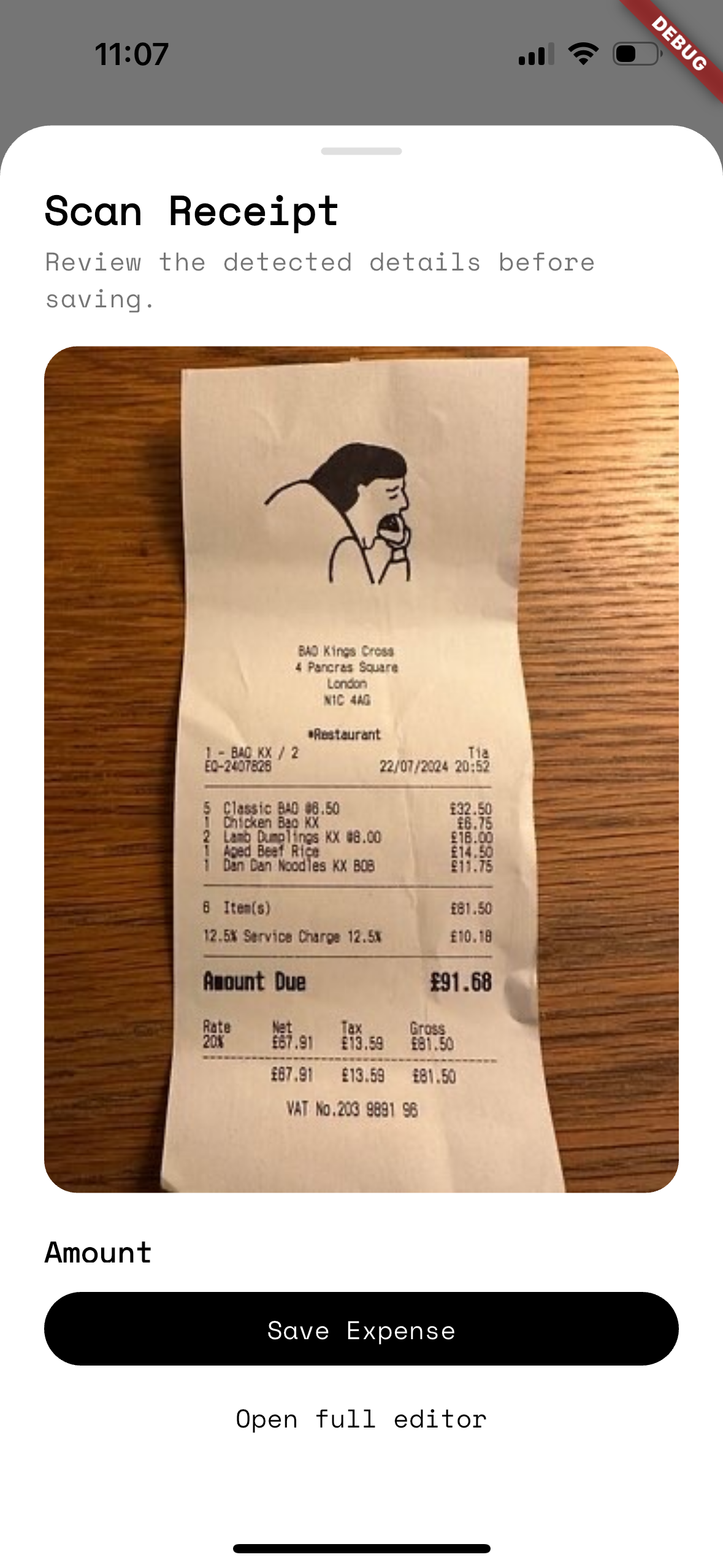
Take clear photos in good light for best OCR results. Manual edits are always available if OCR misses something.
Budget Management
Setting Up Your Budget
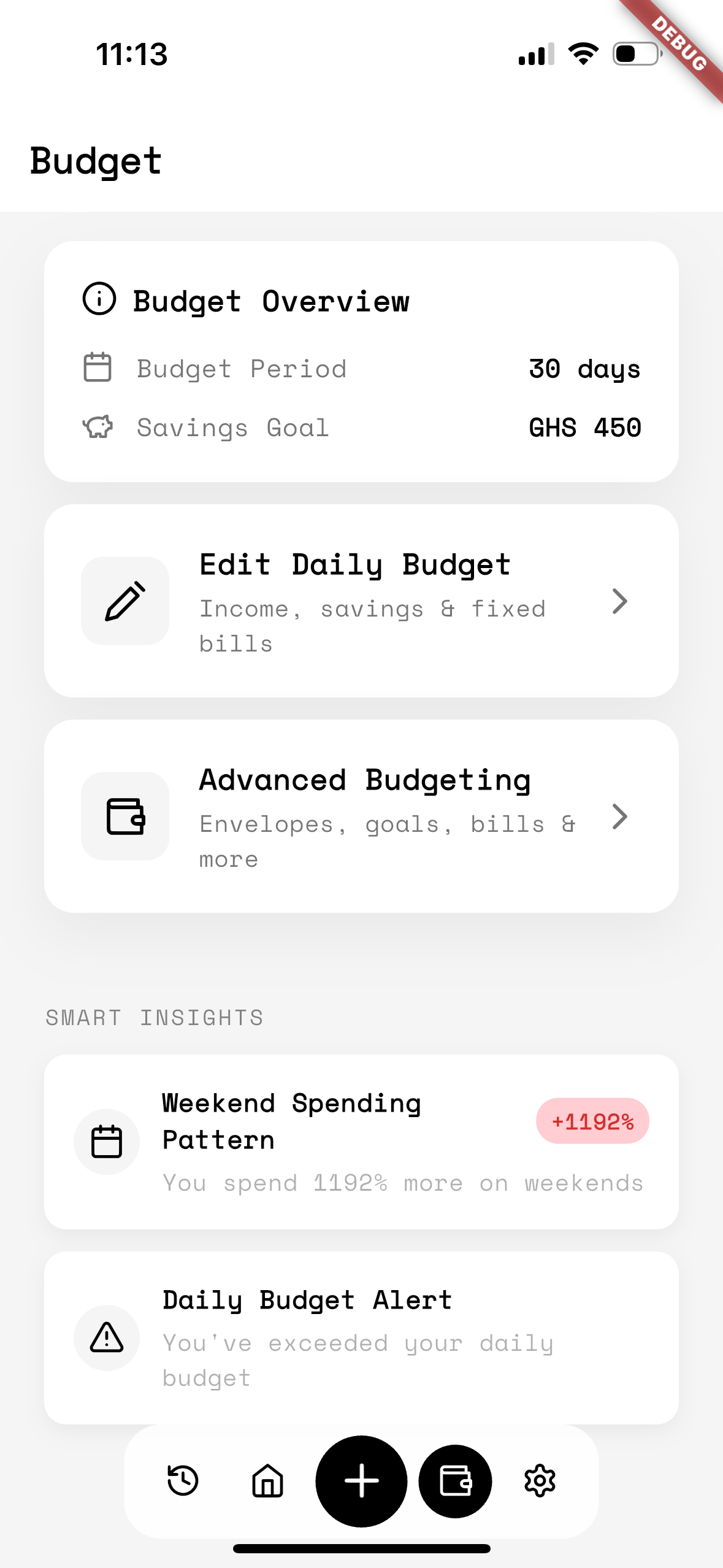
Create categories and set monthly limits. Track progress with visual indicators and receive alerts when you're close to limits.
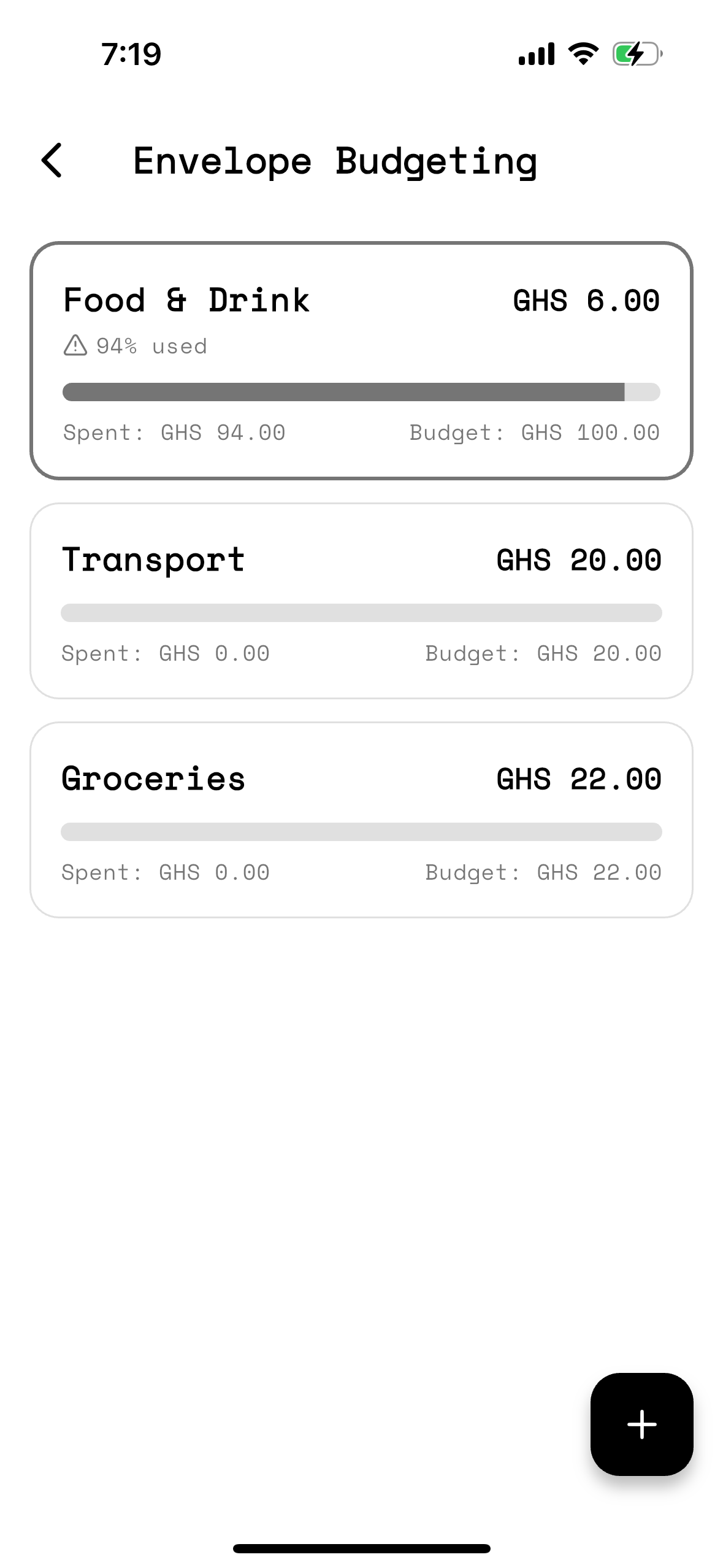
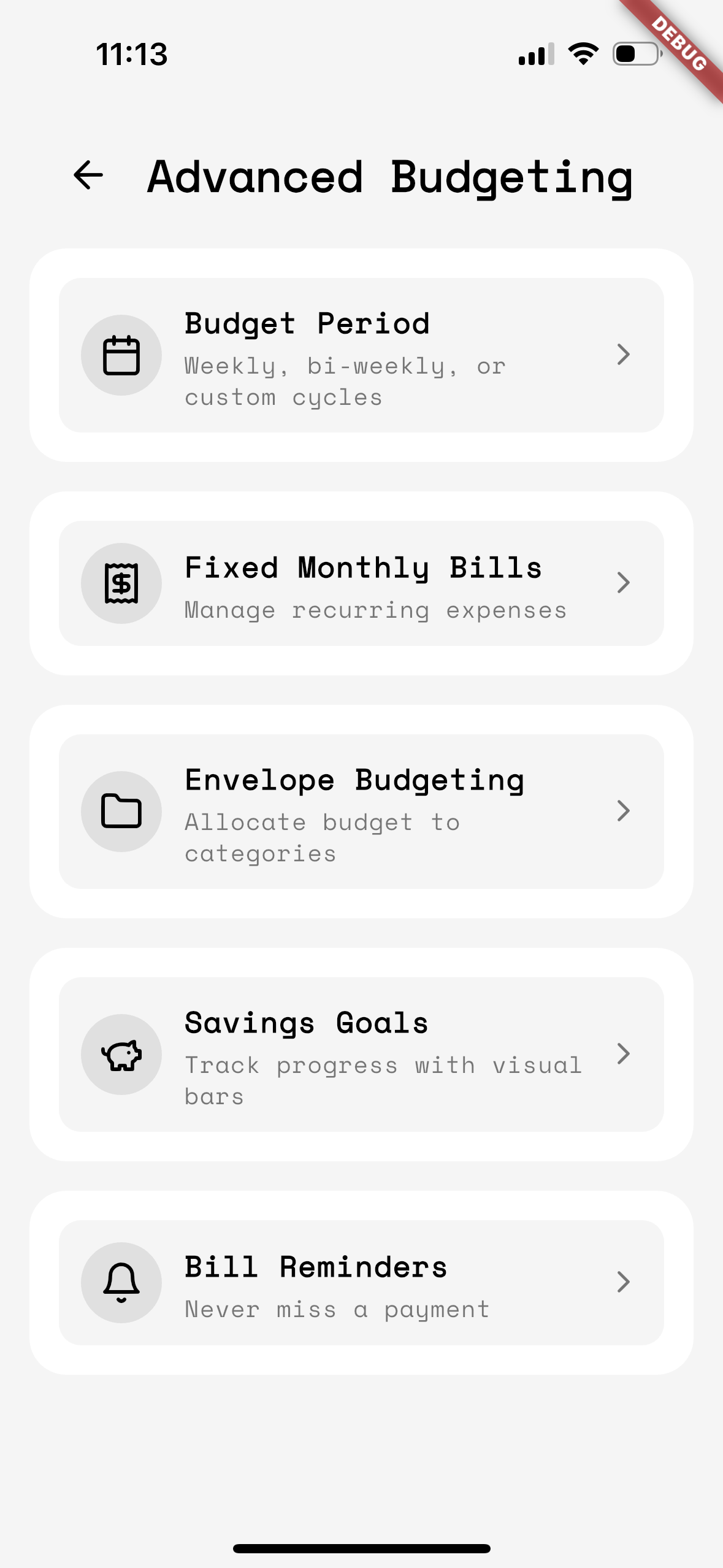
Envelope Budgeting (Pro)
Pro users can create envelopes for categories like Groceries or Entertainment and allocate money to each envelope.
Advanced Features
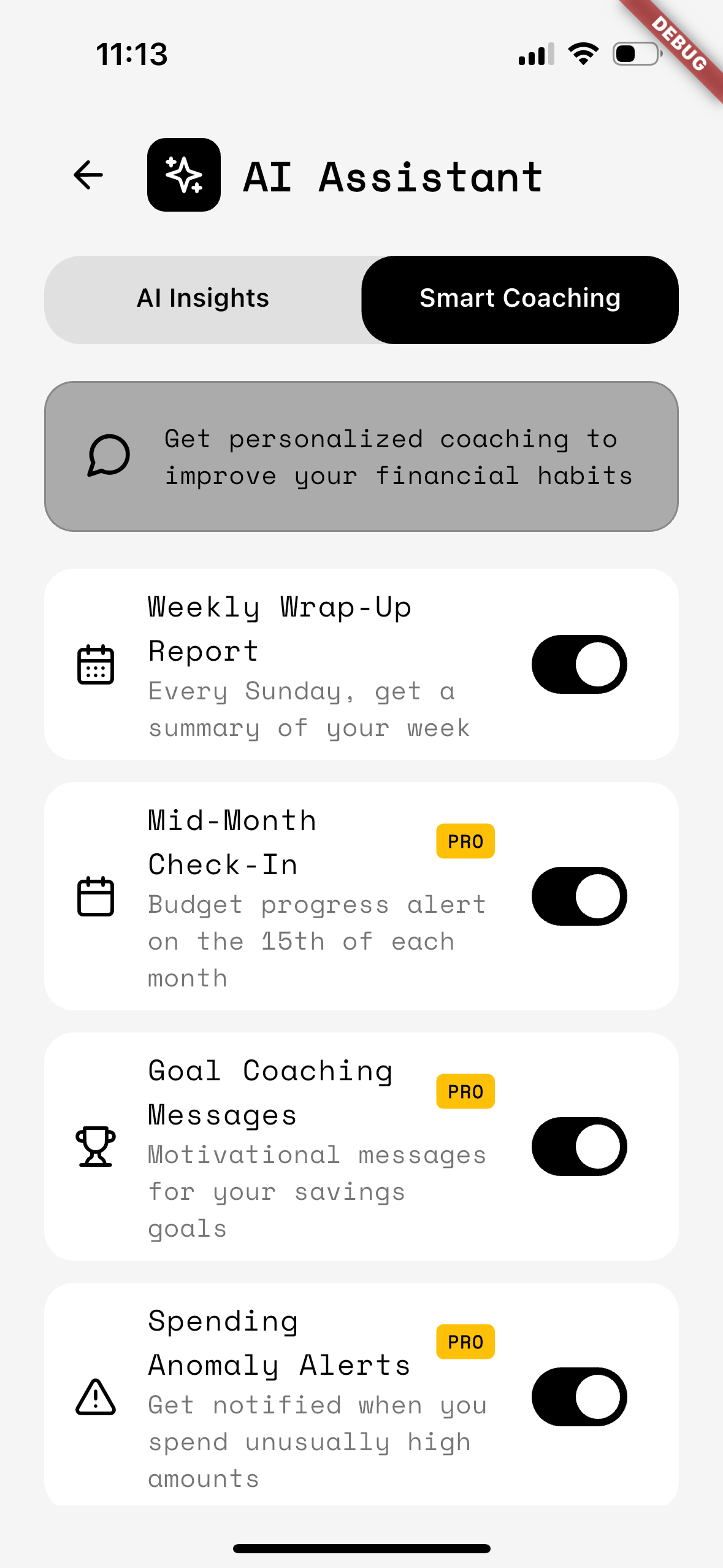
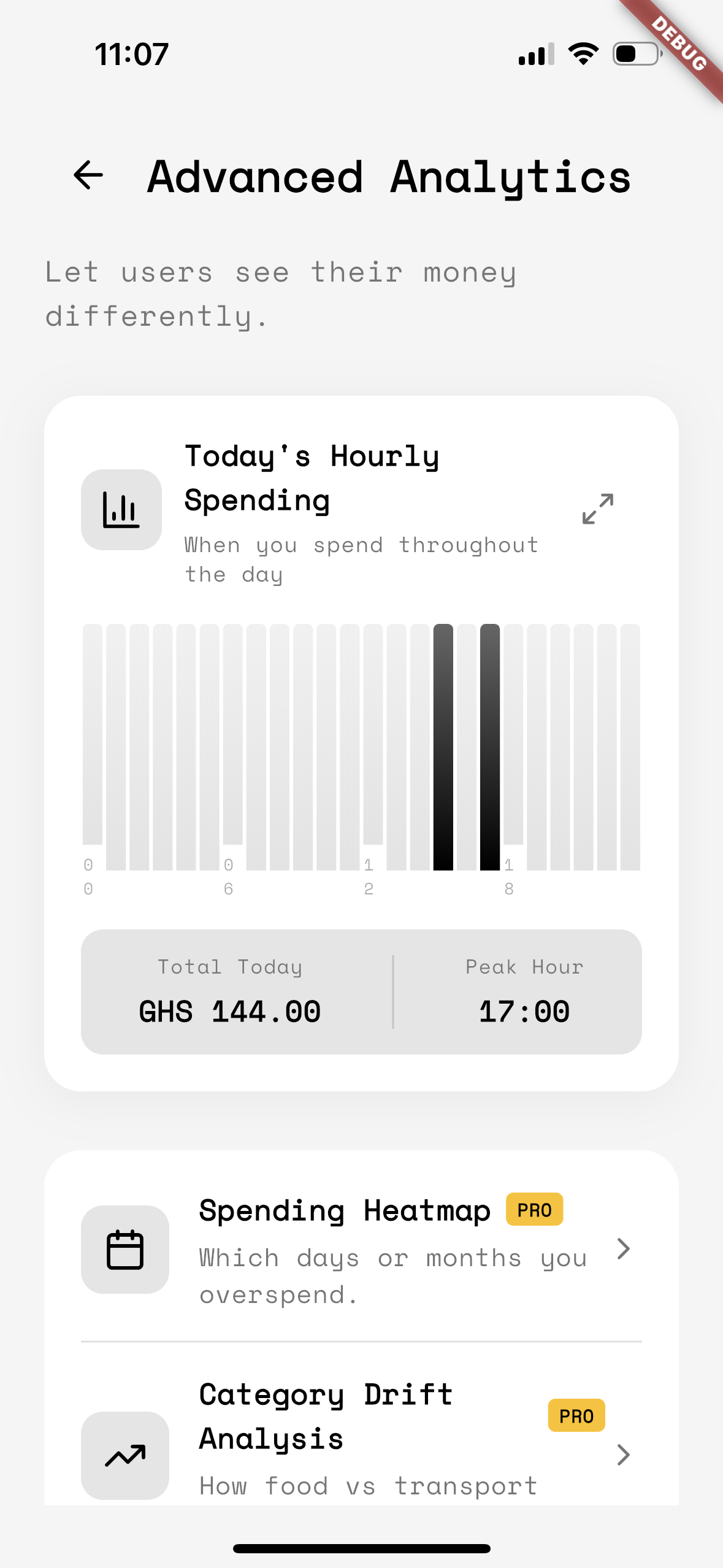
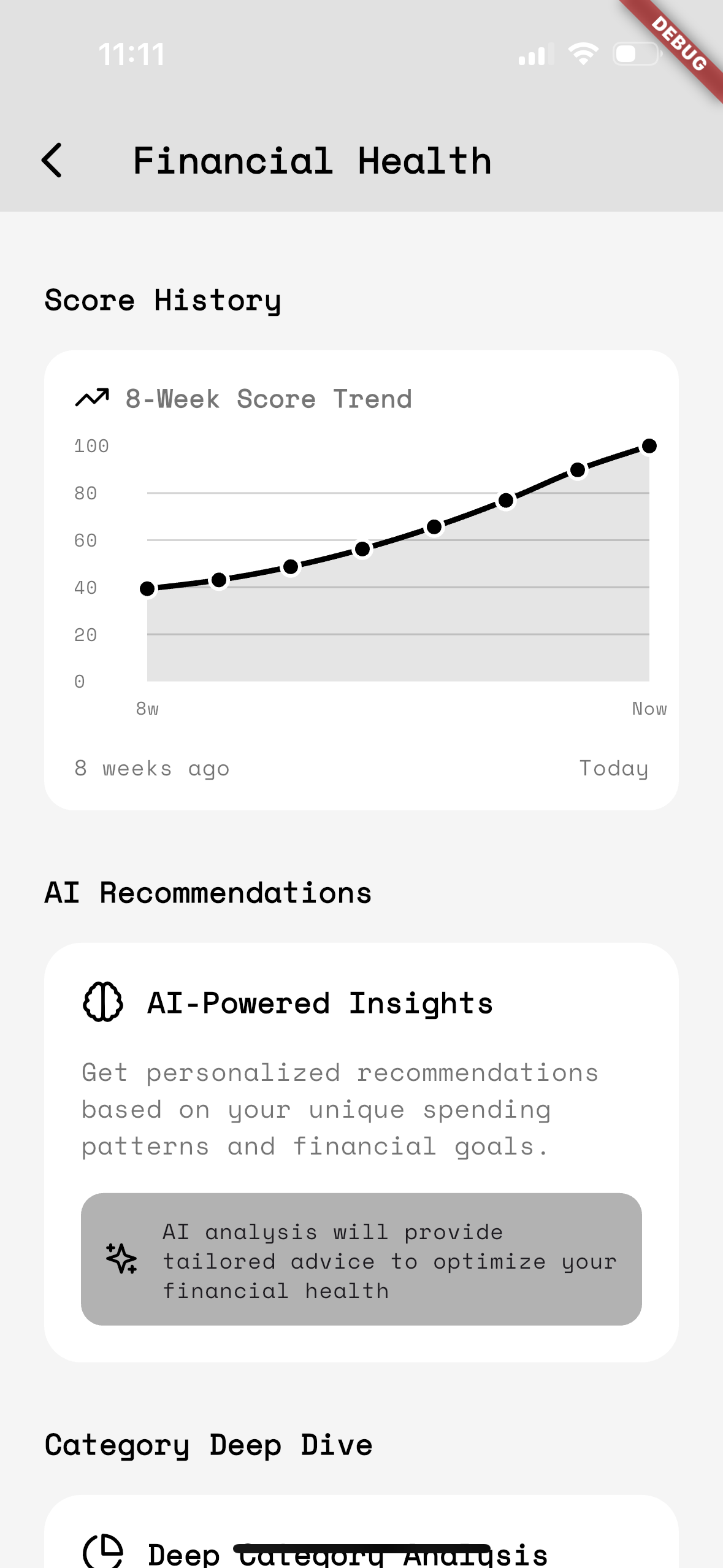
AI Coaching & Insights
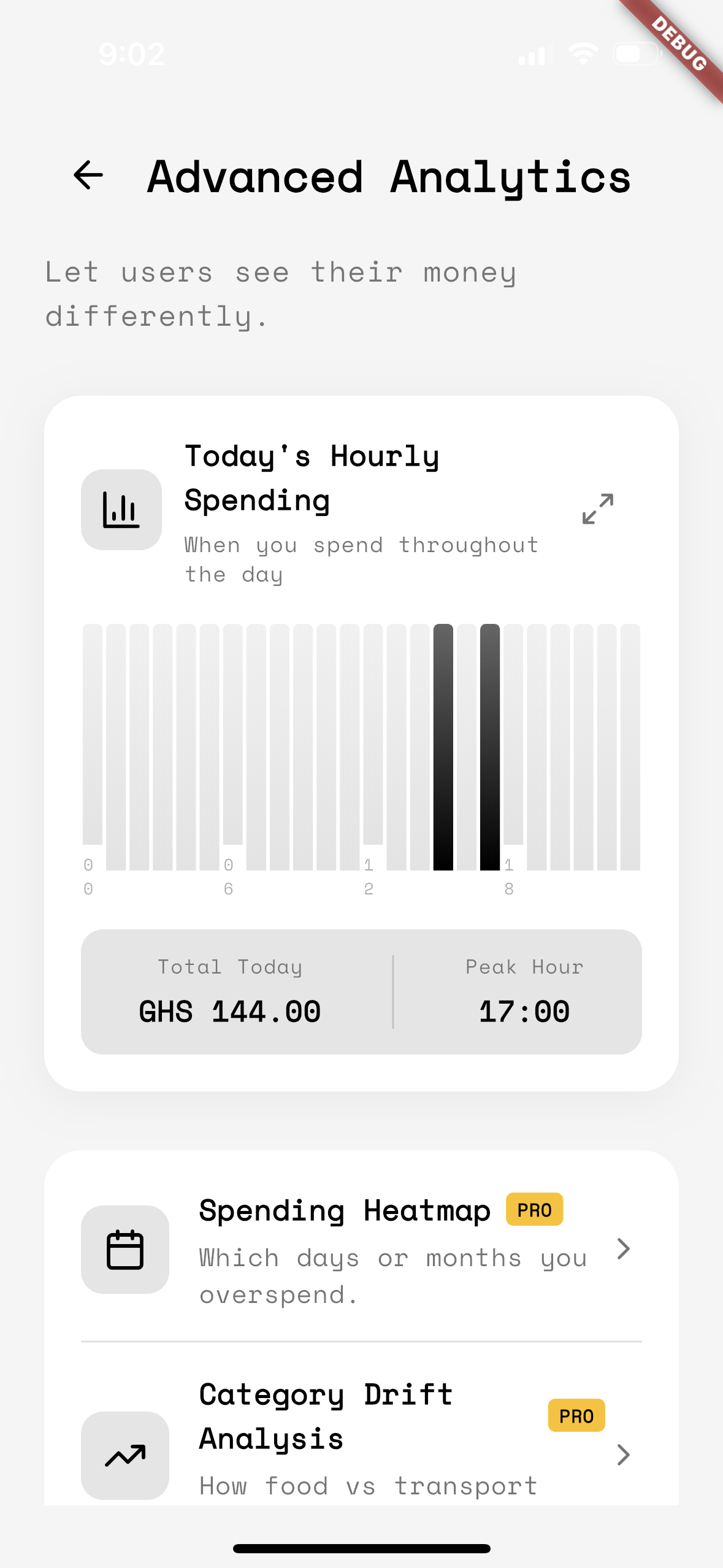
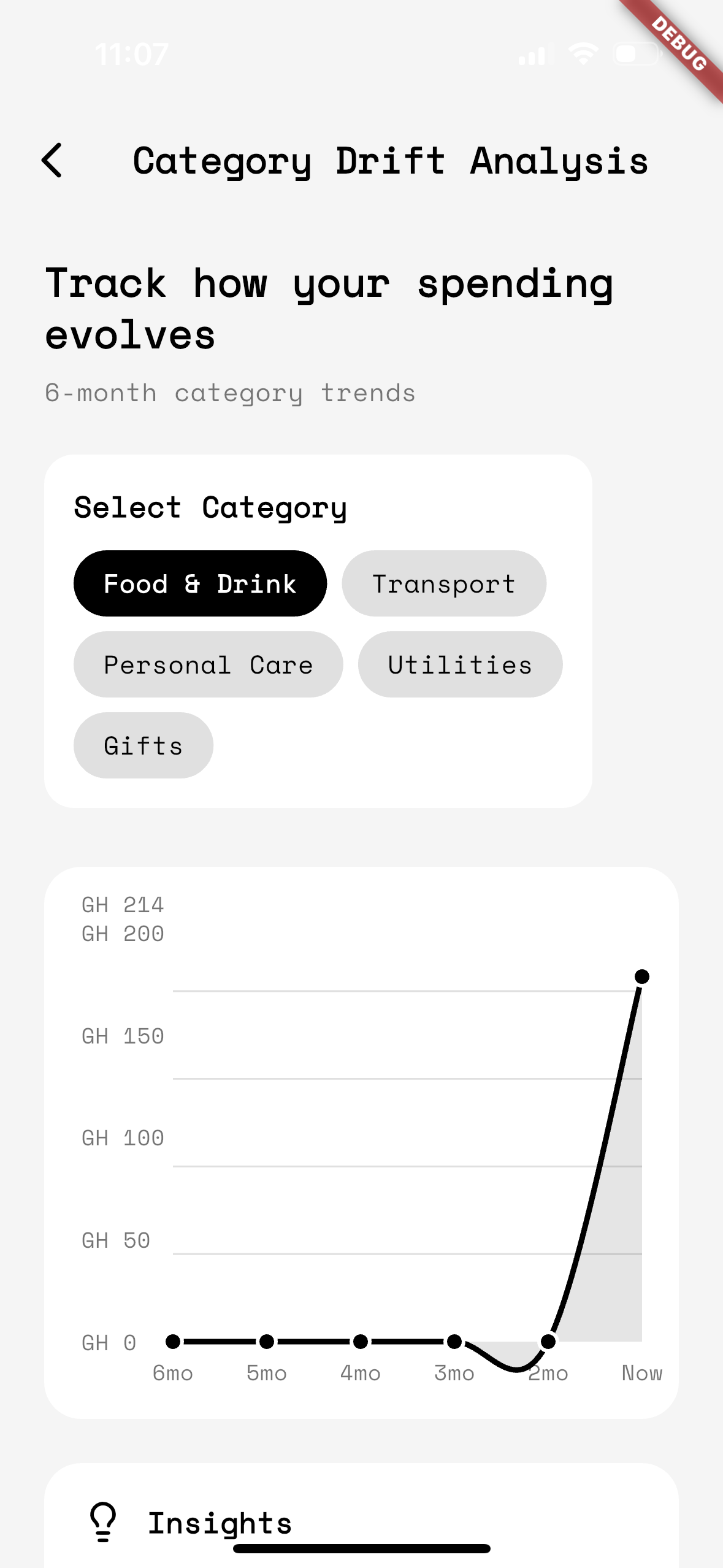
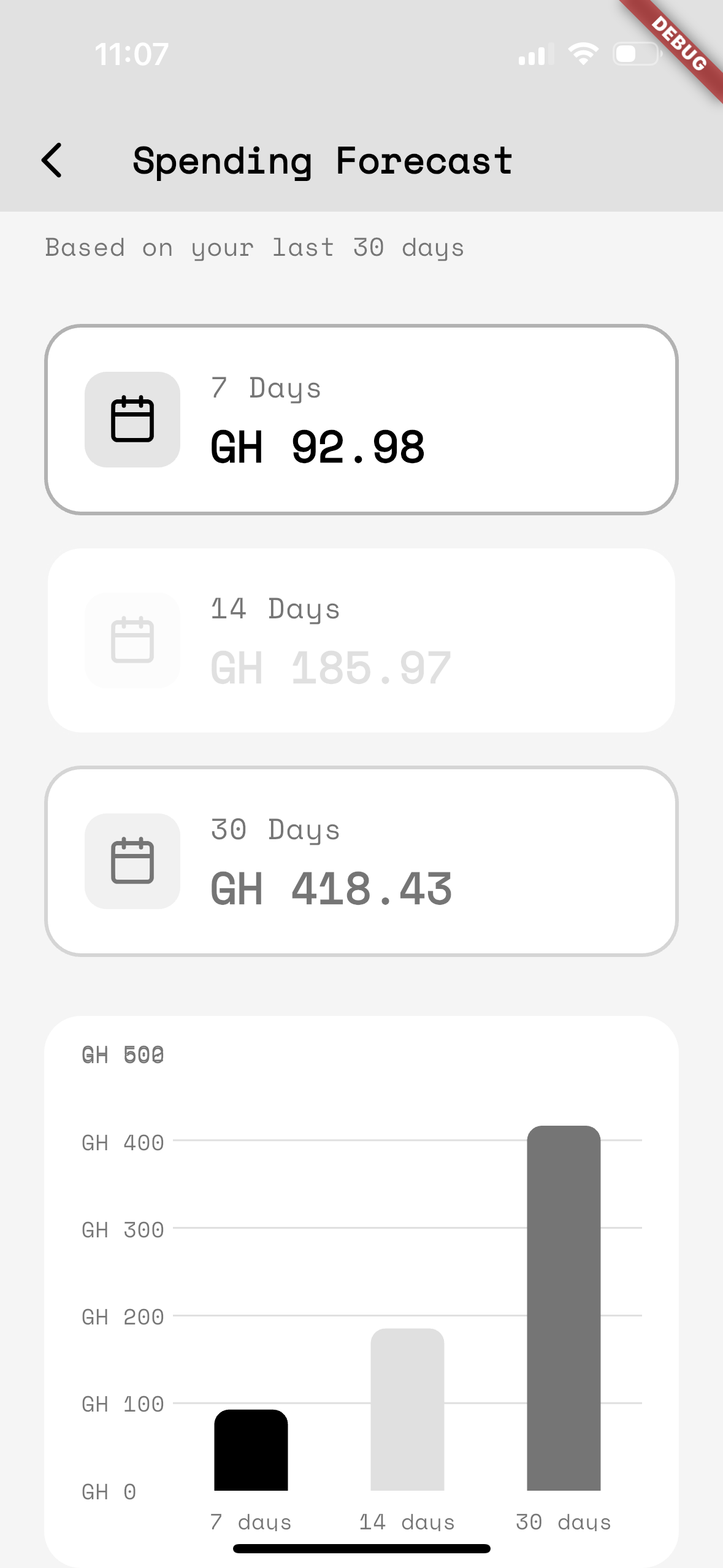
Get personalized advice and spending trends to improve your financial habits.
Bill Reminders & Exports
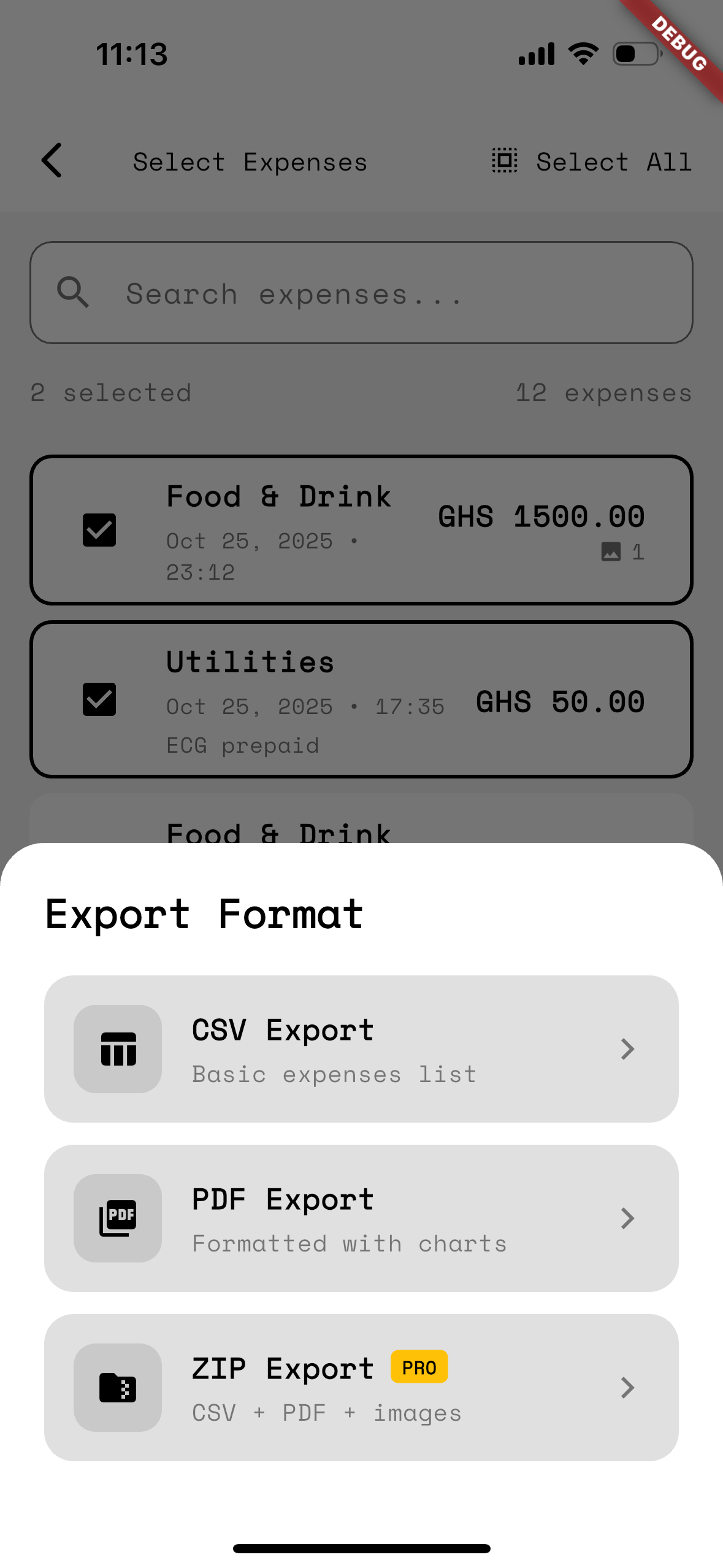
Set reminders for bills and export your data as CSV, PDF, or ZIP for backups and analysis.

Gamification & Streaks
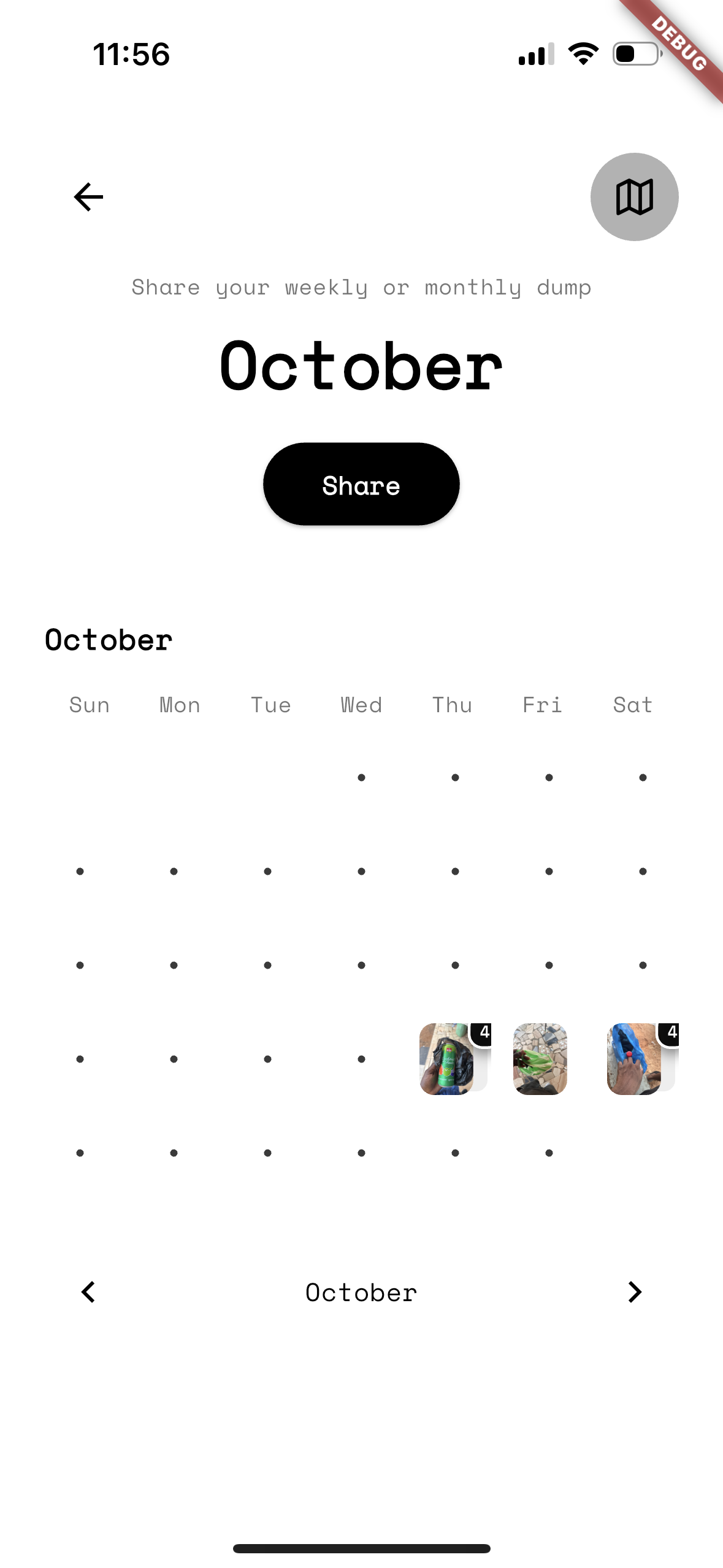
Earn streaks for staying within budget and unlock achievements for milestones like your first savings goal.
Data & Privacy
All data stays on your device. Big Spender does not transmit personal financial data to our servers by default.
- CSV for spreadsheets
- PDF summary reports
- ZIP archive including media
Troubleshooting & Support
If OCR isn't accurate, retake the photo or enter the data manually. If the app is slow, clear cache or restart. Large media collections may affect performance.
For help, email: jeffaoduro@gmail.com
Detailed: Adding Expenses
The app provides four ways to add expenses from the floating central button (plus):
- Add Manually — Opens the full editor where you enter Amount, Category, Date, Note, attach photos/videos, and optionally include your location.
- Scan Receipt — Use your camera or pick an image. OCR will attempt to extract the amount and merchant. Review and edit before saving.
- Quick Templates — Tap a pre-configured template to add a frequent expense instantly. Long-press a template to edit it.
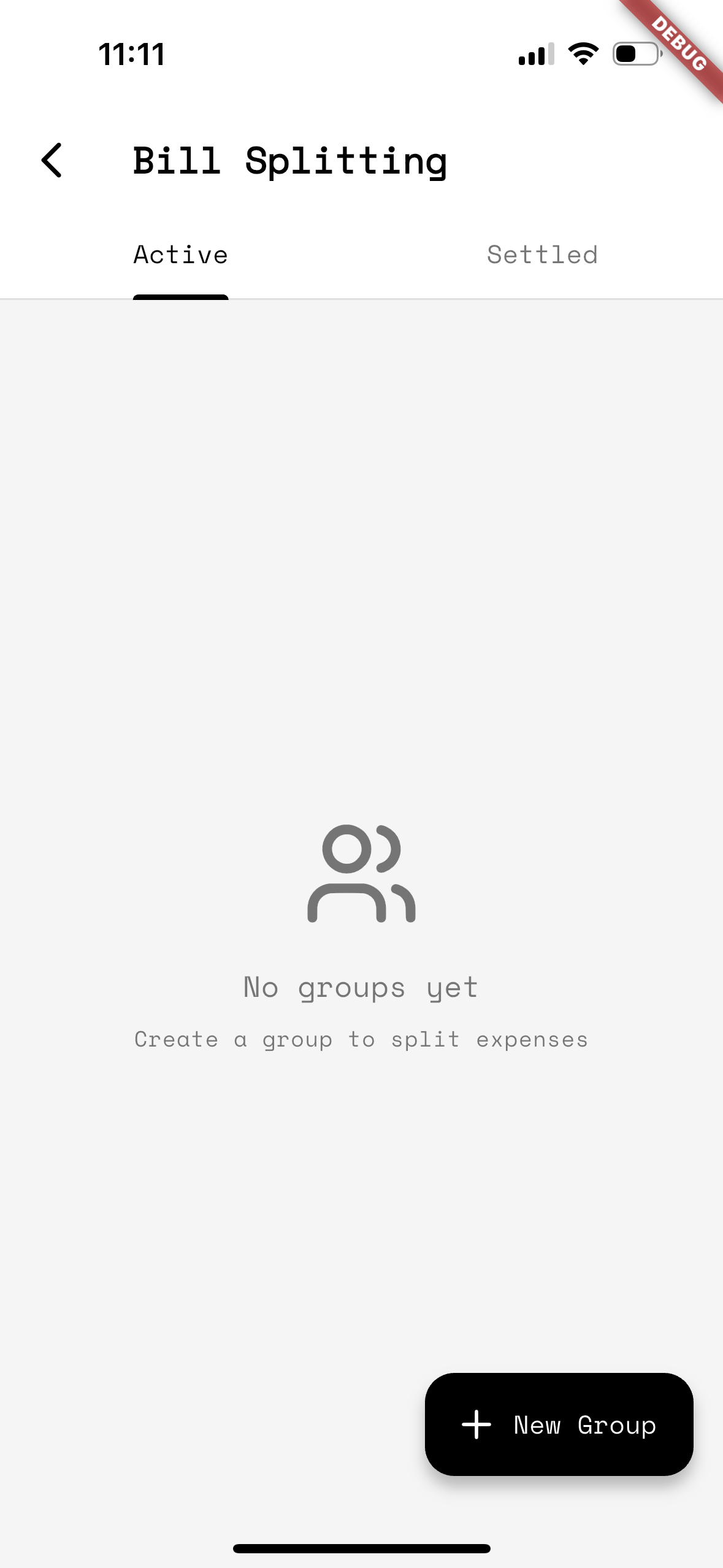
- Split Bill — Create a shared/group expense. This goes to the Bill Splitting flow (may require watching an ad for free users).

- Amount — Numeric entry (supports decimals).
- Category — Pick from predefined categories or custom categories you created.
- Date — Defaults to today; use the date picker to change.
- Note — Optional text describing the expense.
- Media — Attach photos/videos (media paths saved with the expense).
- Location — Optional; app will attempt to capture current location if permissions allow.
Expenses are stored locally. The app checks envelope budgets and may show warnings or device notifications at 80%, 90%, and 100% thresholds.
If the expense uses today's budget and you have rollover balance, the app may consume rollover funds automatically.
Limits, Ads & Subscriptions
The app includes Pro features and ad-gated access for some free users:
- OCR scans (free) — Free users have a limited number of OCR receipt scans per day (2 scans). After the limit you may be prompted to watch a rewarded ad or upgrade to Pro.
- Quick Templates (free) — Free users have a limited allowance for custom templates; upgrade for unlimited templates.
- Split Bill — May require watching a rewarded ad for free users; Pro users access directly.
- Pro — Removes ads and limits (unlimited OCR, unlimited templates, ad-free experience). Pricing details are on the homepage.
When a feature requires an ad, you'll see a dialog offering to watch a short rewarded ad. If you complete the ad you gain temporary access (e.g., scan or split) — if not completed the action is cancelled.
Envelope Warnings & Notifications
When you add an expense, the app evaluates envelope budgets (if configured) and acts as follows:
- ≥ 80% — A notice may be issued.
- ≥ 90% — A warning and optional notification is sent.
- ≥ 100% — An over-budget alert is issued and a notification is sent.
These warnings are designed to help you adjust budgets proactively.
Exports & Backups
You can export your data as CSV and PDF or create a ZIP including media for backups and external analysis. Look for export options in the app's Settings or Export area.

Support & Contact
If the in-app Help & Support page doesn't yet provide what you need, email our support team:
Email: support@bigspender.app
You can also refer to the Legal page for contact and subscription details.